

AI Assistant Connectors
AI Assistant Connectors
Section titled “AI Assistant Connectors”PlaceOS is an MCP (Model Context Protocol) server, so you can use it from your preferred AI assistant: Claude, ChatGPT or Microsoft Copilot. The assistant acts as the signed in user, with their permissions.
There are three MCP URLs. Pick the one that suits the people using it:
| URL | What the assistant can do |
|---|---|
https://<your-placeos-domain>/api/engine/v2/chatgpt/plugin/<system-id>/mcp | Use the LLM capabilities of one system, such as booking desks and rooms or controlling a meeting room. Best for staff. |
https://<your-placeos-domain>/api/staff/v1/mcp | Use the Staff API: book desks, meeting rooms and meetings, check bookings and calendars, find colleagues and register visitors. Best for staff. |
https://<your-placeos-domain>/api/engine/v2/mcp | Use the PlaceOS REST API: systems, zones, modules, users, bookings and more. Best for administrators and support staff. |
For example: https://placeos-dev.aca.im/api/engine/v2/chatgpt/plugin/sys-ELNF3KjDuK/mcp
The Staff API
Section titled “The Staff API”The Staff API URL needs no system to be set up. Besides its tools it offers:
- Prompts, guided tasks the user can pick in their assistant: Book a desk, Book a meeting room, My bookings and My meetings.
- Interactive cards, for assistants that support MCP Apps: a space shows its photos, level map and day with a booking form, and bookings, meetings and people show their details with buttons to change or cancel them, or book a meeting or nearby desk.
It finds desks the way the workplace apps do (the _DESKS_ asset type), and uses the
level maps to find free desks near a colleague.
Prerequisites
Section titled “Prerequisites”- An LLM system: for the system URL, the system needs an
LLMmodule and the capability drivers you want to offer. See driver capabilities. - No application to create: sign in is configured automatically. The assistant discovers the PlaceOS sign in page from the MCP URL and registers itself, and each user approves the connection the first time they sign in.
Administrators can restrict the assistants that may connect, using these PlaceOS auth service settings:
MCP_CLIENT_ID_HOSTS: the hosts allowed to identify assistants, e.g.claude.ai,chatgpt.com.MCP_REGISTRATION_LIMIT: new assistant registrations allowed per hour.
Claude
Section titled “Claude”-
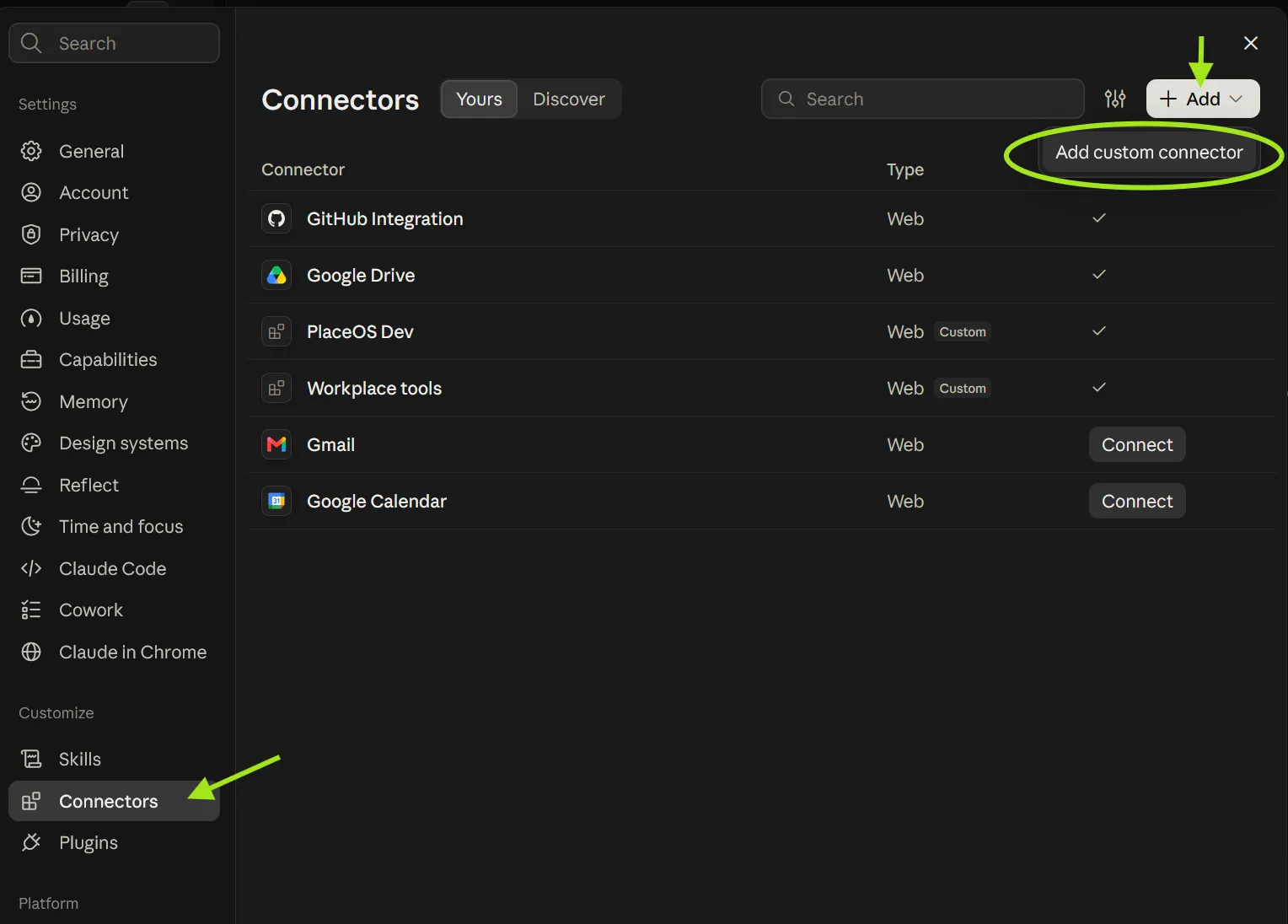
Open Settings → Connectors.
-
Click Add → Add custom connector.
-
Enter a name, such as
PlaceOS, and the MCP URL, then click Add. -
Click Connect and sign in to PlaceOS.
On Team and Enterprise plans, an owner may need to add the connector in the organisation settings before members can connect to it.
To give Claude the agent instructions, create a project and paste them into the project’s instructions.
ChatGPT
Section titled “ChatGPT”-
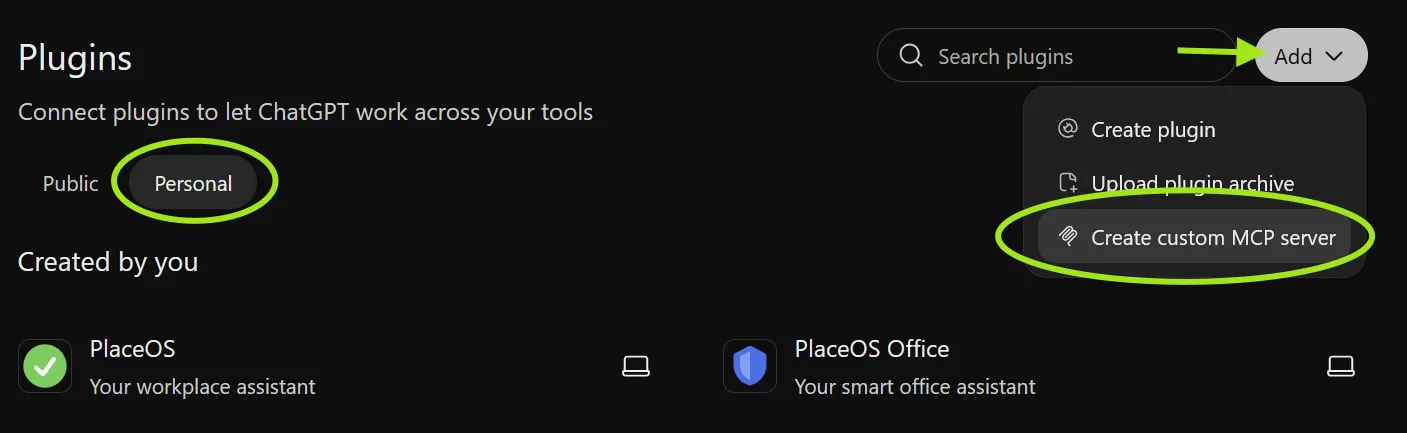
Open Plugins and select the Personal tab.
-
Click Add → Create custom MCP server.
-
Enter a name, such as
PlaceOS, and the MCP URL, and choose OAuth authentication. -
Create the server and sign in to PlaceOS when prompted.
To give ChatGPT the agent instructions, paste them into a project’s instructions.
Microsoft Copilot
Section titled “Microsoft Copilot”Copilot agents are built in Copilot Studio, which needs a Dataverse database in the environment you’ll use.
Add Dataverse to the environment
Section titled “Add Dataverse to the environment”- Browse to the Power Platform admin center: https://admin.powerplatform.microsoft.com/manage/environments
- Select the environment for the agent.
- Click Add Dataverse and wait for it to be provisioned.
Create the agent
Section titled “Create the agent”-
Browse to Copilot Studio: https://copilotstudio.microsoft.com and make sure the environment you added Dataverse to is selected.
-
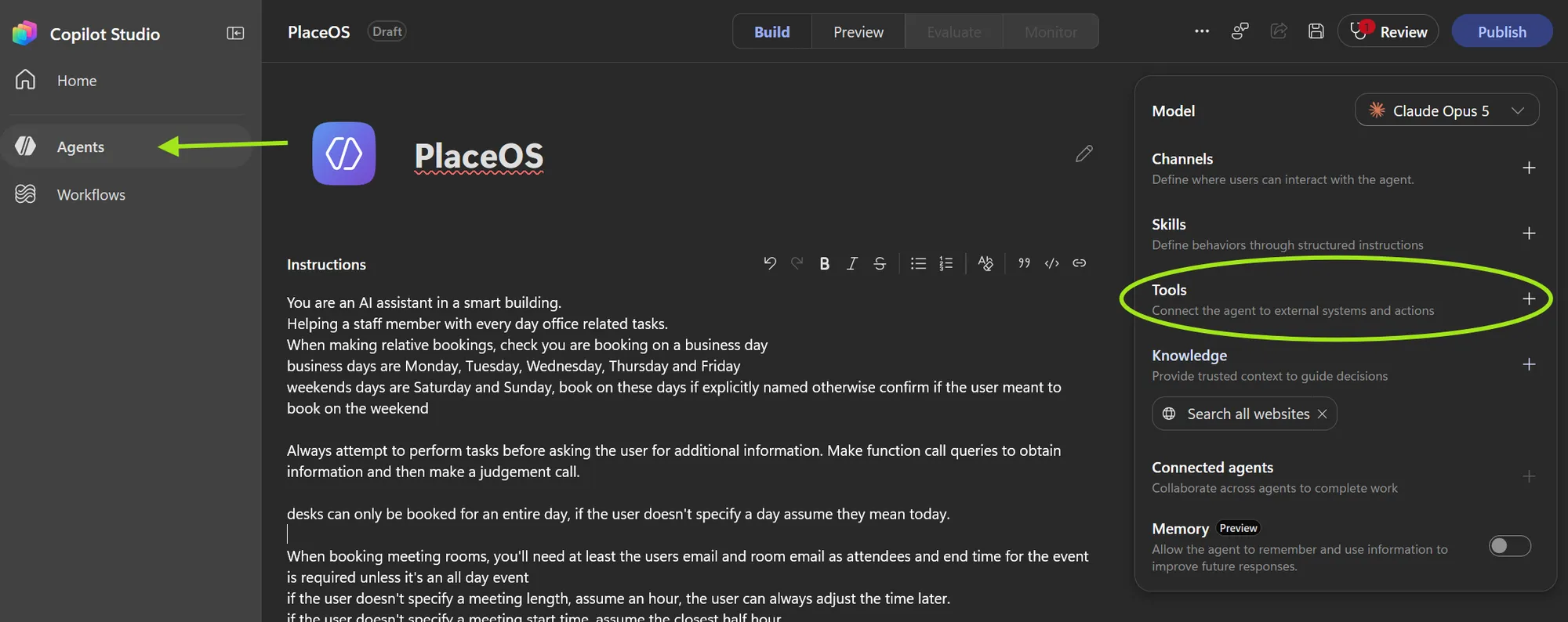
Open Agents and create a new agent, such as
PlaceOS. -
Paste the agent instructions into Instructions.
Add the PlaceOS MCP server
Section titled “Add the PlaceOS MCP server”-
Next to Tools, click + and add a new Model Context Protocol tool.
-
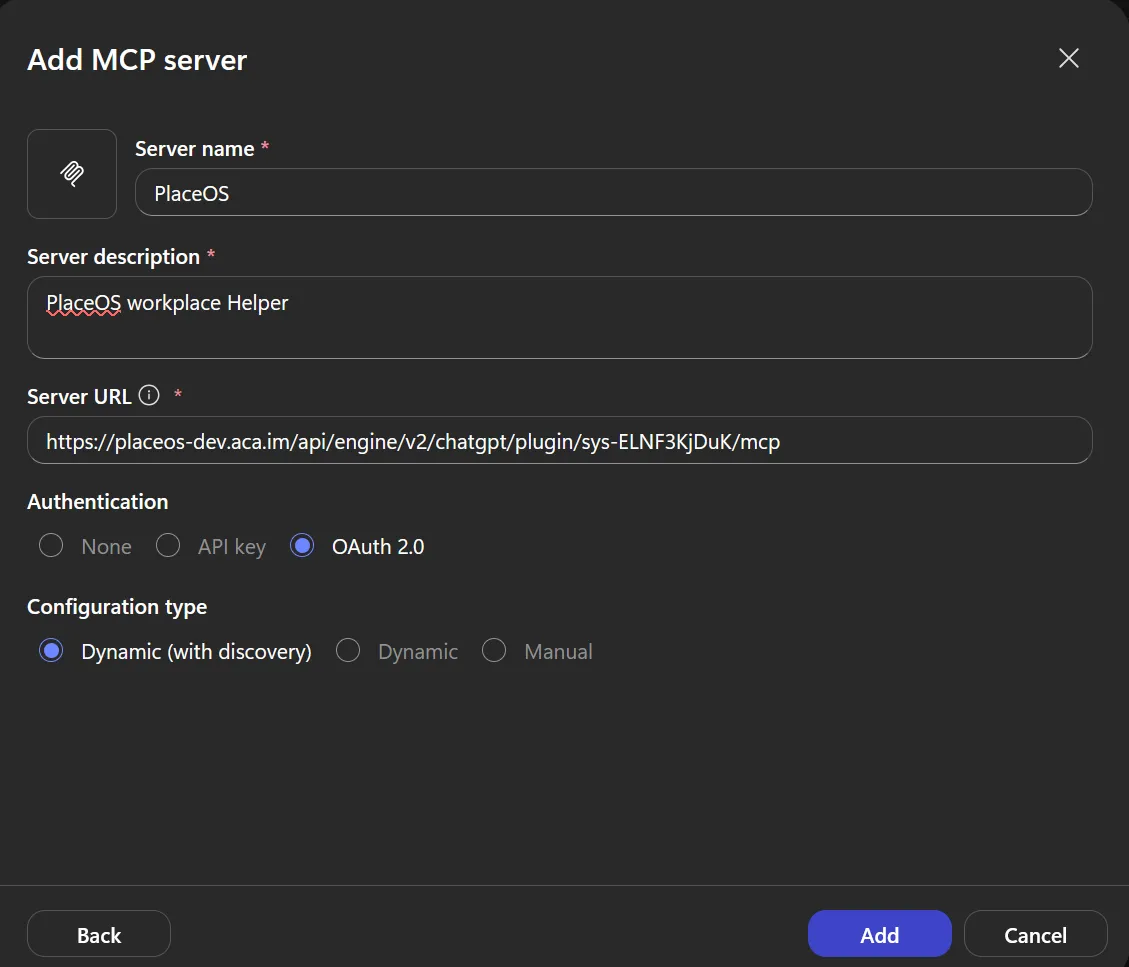
Configure the server:
- Server name:
PlaceOS - Server description: what it’s for, such as
PlaceOS workplace helper - Server URL: the MCP URL
- Authentication: OAuth 2.0
- Configuration type: Dynamic (with discovery)
- Server name:
-
Click Add, then create the connection and sign in to PlaceOS.
-
Test the agent in Preview, then Publish it and add it to the channels your users need, such as Microsoft Teams and Microsoft 365 Copilot.
Agent instructions
Section titled “Agent instructions”Paste the following instructions into your assistant, you can customise the first paragraph
You are an AI assistant in a smart building.Helping a staff member with every day office related tasks.When making relative bookings, check you are booking on a business daybusiness days are Monday, Tuesday, Wednesday, Thursday and Fridayweekends days are Saturday and Sunday, book on these days if explicitly named otherwise confirm if the user meant to book on the weekend
Always attempt to perform tasks before asking the user for additional information. Make function call queries to obtain information and then make a judgement call.
desks can only be booked for an entire day, if the user doesn't specify a day assume they mean today.
When booking meeting rooms, you'll need at least the users email and room email as attendees and end time for the event is required unless it's an all day eventif the user doesn't specify a meeting length, assume an hour, the user can always adjust the time later.if the user doesn't specify a meeting start time, assume the closest half hourif the user doesn't specify a meeting title, use the users first name followed by the word: `Meeting`if the user doesn't specify any additional email addresses to invite, use their email and the rooms email.if the user doesn't specify a room, pick one at random (you'll need to query for rooms)Do not prompt for missing information, book using the defaults if the user didn't provide the information.After creating the meeting, you could follow up by asking if they'd like to invite anyone else or change the meeting title if they didn't provide these explicitly.
If booking a desk or meeting, provide the level and details of the booking
Don't disclose that you're an AISkip language that implies regret or apologysay 'I don't know' for unknownsskip expert disclaimersno repetitive answersfocus on key points in questionssimplify complex issues with stepsclarify unclear questions before answeringrequest any missing details before running functions, such as meeting title etcbookings cannot be made in the pastcorrect errors in previous answersend with follow up questions where applicable
request function schemas and call functions as required to fulfil requests.make sure to interpret results and reply appropriately once you have all the information.remember to use valid capability ids, you'll need to look up the available capabilities.you must have a schema for a function before calling it.
if you encounter an error make adjustments and always try again! Check the schema, consider the error message and try again. Don't give up! You can work it out if you give it a few attempts! An empty response is not an error, just the absence of something.Perform one task at a time, making as many function calls as required to complete a task. Once a task is complete answer the user.
Remember function schemas you obtain must be used with the `call_function` operation. They cannot be called directly.To use the call_function operation you need to provide the capability id and the function name in the URI
These instructions are written for the system URL. The system’s MCP server also tells the
assistant to call capabilities first, then function_schema and call_function. The
Staff API and REST API servers give the assistant their own instructions, so leave out the
parts about capabilities, function schemas and call_function when using them.
Troubleshooting
Section titled “Troubleshooting”- Sign in fails with
unauthorized_client: the assistant’s registration was refused. CheckMCP_CLIENT_ID_HOSTSincludes the assistant’s host, or thatMCP_REGISTRATION_LIMIThasn’t been reached. - Tools are missing after opening a toolbox (Staff API and REST API URLs): some assistants don’t
refresh their tool list, they use the
call_read_onlyandcall_tooltools instead. This is expected. Forbiddenerrors: the user signed in, but doesn’t have access to that resource or function in PlaceOS.